Progressive Web App (PWA)
We have introduced Progressive Web App (PWA) support to provide a faster, more reliable, and mobile-friendly experience across devices.
What is a PWA?
A Progressive Web App combines the best features of web and mobile applications. It runs in the browser but behaves like a native mobile app, offering improved performance and easy installation without requiring an app store.
Key Benefits
- Mobile-Friendly Experience - Optimized for smartphones and tablets.
- Installable - Users can install the app directly from the browser.
- No App Store Required - Automatic updates without app store dependency.
Installing the PWA - Desktop
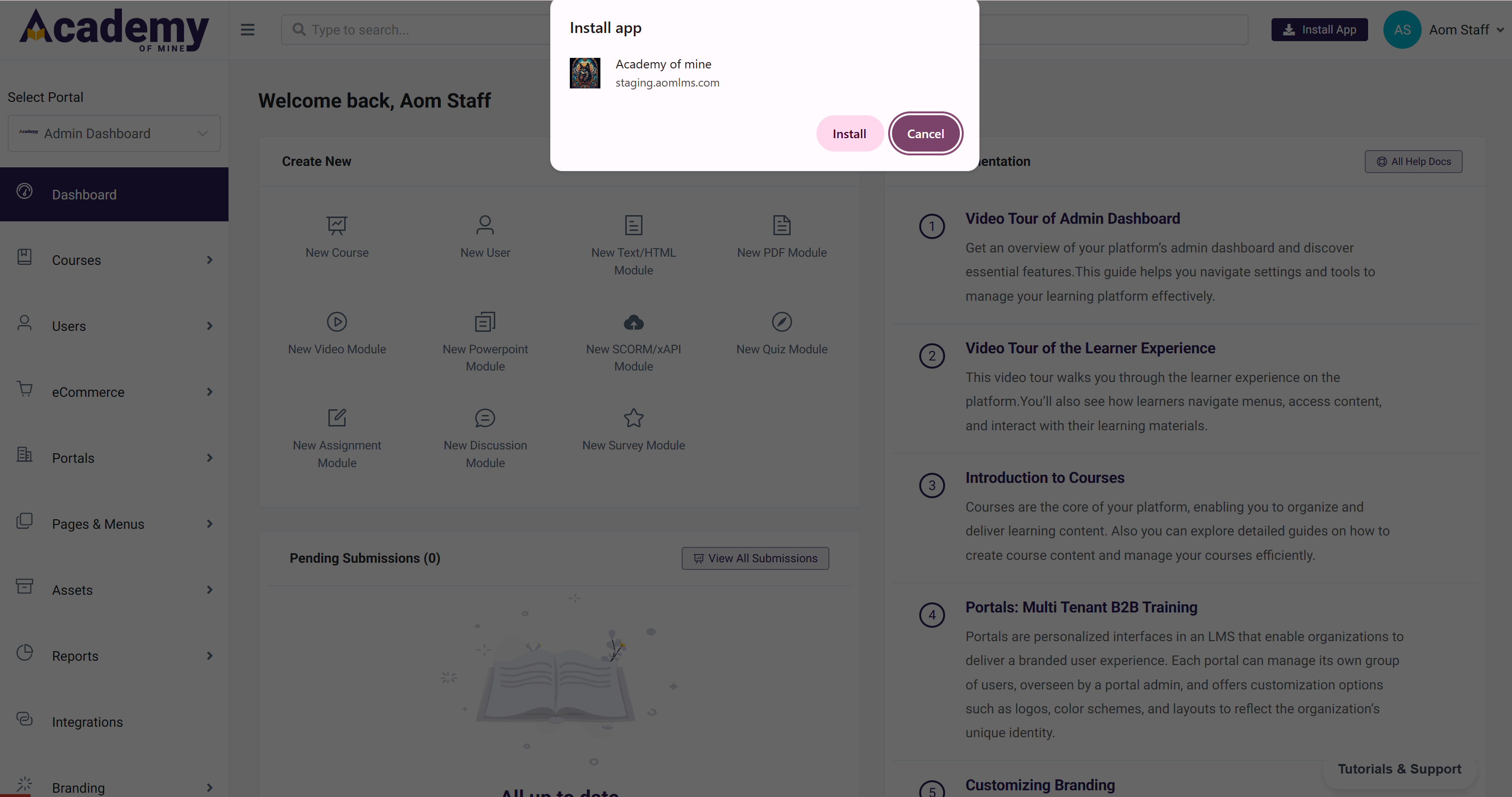
On desktop browsers such as Chrome or Firefox, users will see an “Install App” button displayed in the application header, located between the search bar and the profile menu.

Clicking the Install icon opens a confirmation dialog.
Once installed, the application launches in its own window, similar to a native app.
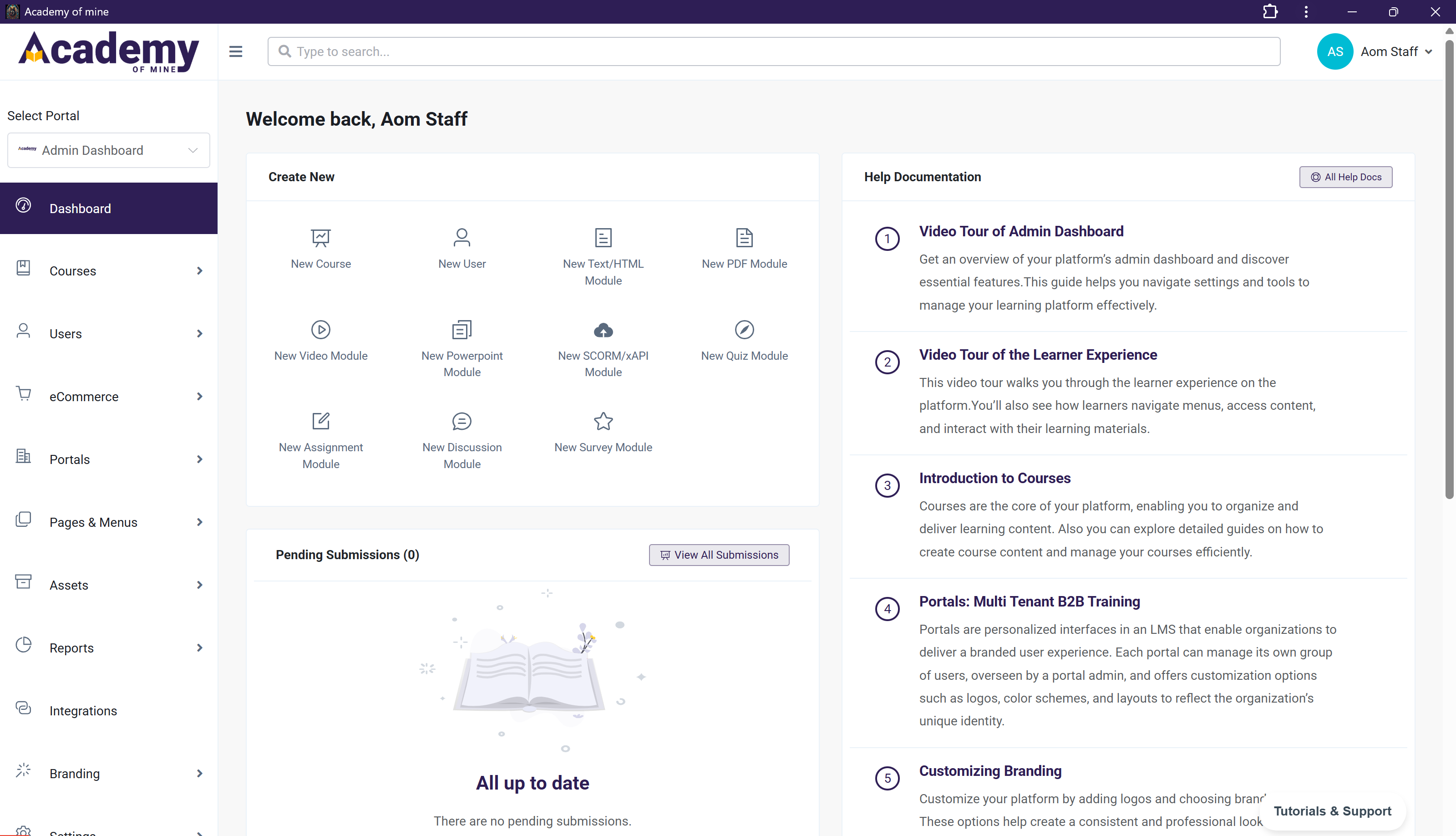
Accessing the Installed App
After installation, users can launch the app directly from their desktop or start menu.
Installing the PWA - Android Browser
Users can install the Progressive Web App (PWA) on Android devices directly from supported browsers such as Google Chrome and Mozilla Firefox.
Installation via Install Prompt (Popup)
In supported browsers, an install prompt may appear automatically when the application meets PWA installation criteria.
- The prompt usually appears as a banner or popup at the bottom or top of the screen.
- Some browsers display a hover-style prompt or small install icon in the address bar.
- Tap Install or Add to proceed.
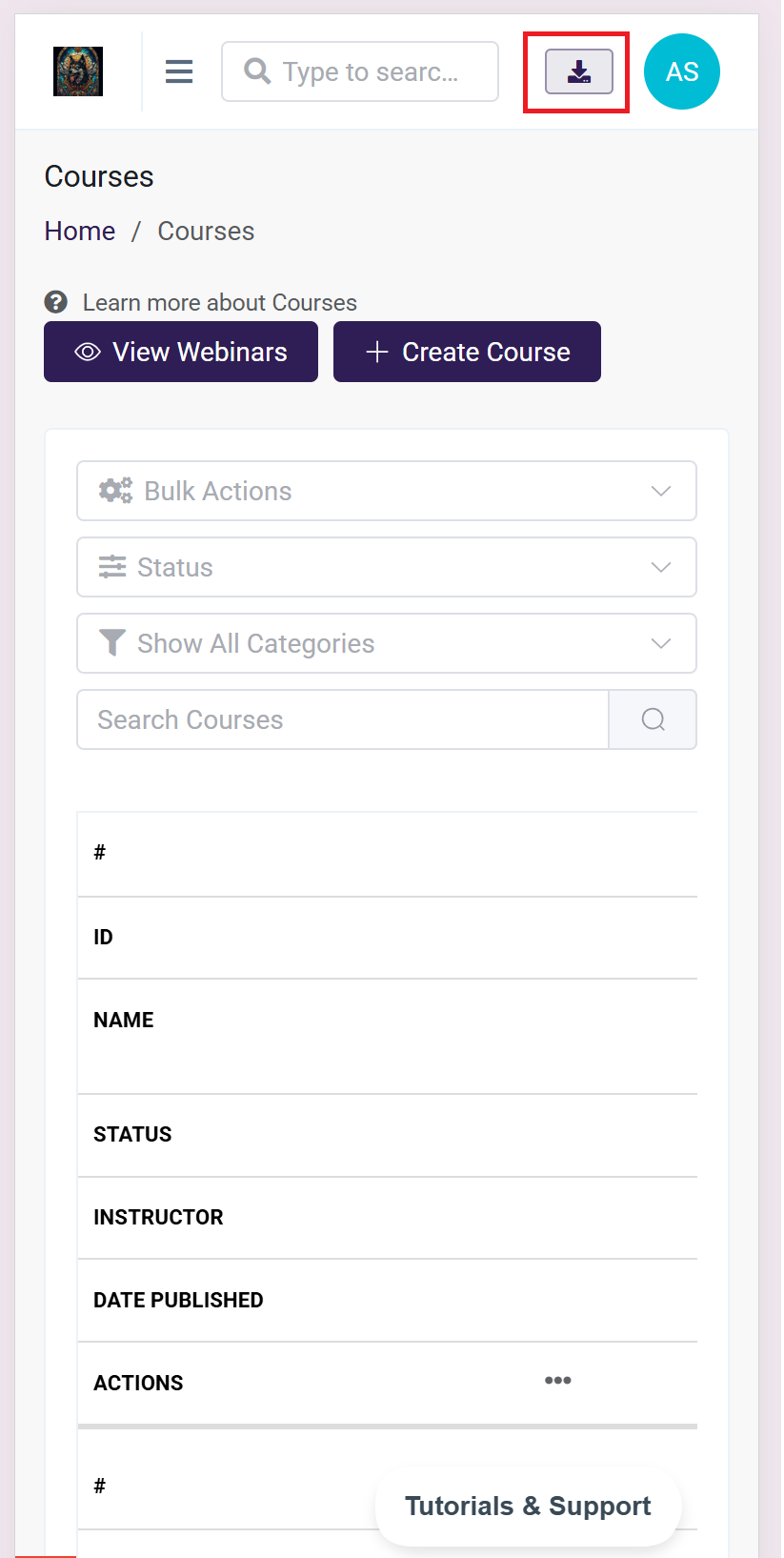
Additionally, a download icon is displayed within the application and can be used to install the app.
Once installed, the application launches in its own window, similar to a native app.
Installation via Browser Menu
If the install popup does not appear, the PWA can be installed manually:
- Open the application in a supported Android browser.
- Tap the browser menu (three dots).
- Select Add to Home screen or Install app.
- Confirm the installation.
Refer to the video demonstration below for a step-by-step guide to installing and using the PWA.
Supported Platforms
- Android (Chrome, Firefox)
- Windows & macOS (Chrome, Firefox)
Updates
The PWA updates automatically in the background whenever a new version is available. No manual action is required from the user.
Limitations
- Some advanced native features may not be available on all platforms.
- Browser support depends on Chrome and Firefox PWA capabilities.